How to set up OBS: From connecting to Chzzk and SOOP broadcasting to setting up the microphone
This is how to set up OBS for first-time broadcasters. We have summarized 1080p, 30, and 60fps settings, Chzzk recommended transmission values, SOOP external device connection, and microphone inspection.

Hanbin Kim
 ClipSpray
Key takeaways
- OBS can be started quickly by setting the scene and source configuration, resolution and FPS, platform connection, microphone check, and test broadcast.
- For 1080p broadcasts, start with 1920×1080, but for fast games, test from 60fps, and for talk broadcasts or heavy PC load, start from 30fps.
- Czizyk officially recommends 1080p, 60fps, 8000kbps CBR, 1 second keyframe, and hardware encoder.
- After logging in, SOOP connects OBS in the external device broadcast settings and gives priority to the transmission information displayed on the account screen.
- Using the same microphone for global audio and scene sources at the same time can result in duplicate sounds, so only use one path.
If you have OBS installed, you don't need to touch all the advanced options from the beginning. Just check in the following order: scene and source configuration, resolution and FPS, platform connection, microphone check, and test broadcast.
1. Create a scene and source first
There are four places to look first on the OBS home screen.
- Scene: Divide the composition into game broadcast, standby screen, and chat screen.
- Source: Add screen capture, game capture, webcam, images, browser, and more.
- Audio Mixer: Check the volume of your microphone and desktop.
- Control: There are menus for start broadcasting, start recording, and settings.
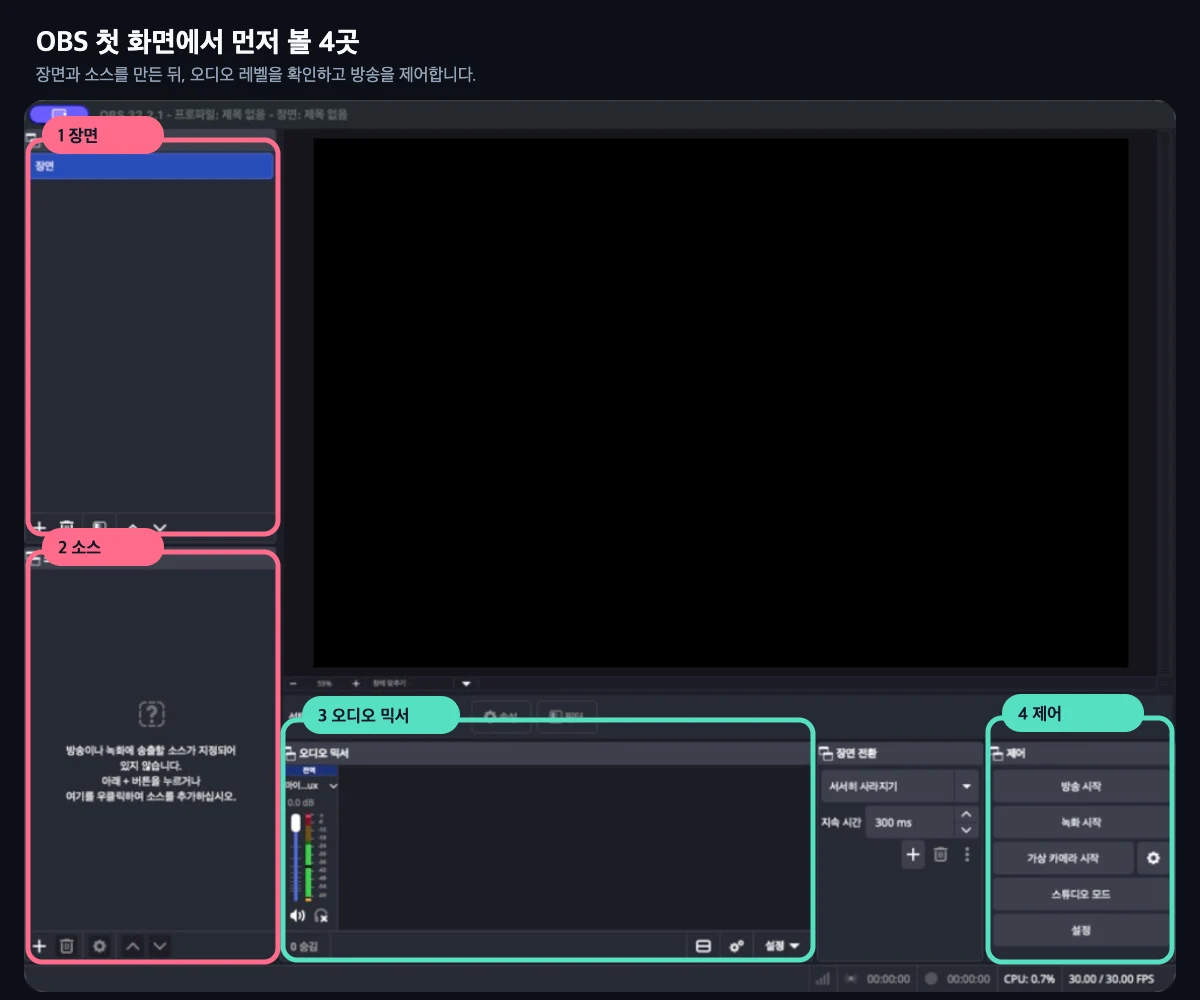
After creating a scene, add the required sources and check if the audio meters are moving.
To place a webcam on top of the game screen and adjust its size and position, please continue to check the OBS Cam Screen Splitting and Placement Guide.
2. Resolution and FPS settings
Start as shown below in ‘Settings → Video’.
- Default Canvas Resolution: 1920×1080
- Output resolution: 1920×1080
- FPS: 60 if the movement is fast like a game, 30 if there is a talk broadcast or a heavy PC load.
If an interruption occurs during broadcasting, it is easier to find the cause by lowering the output resolution to 1280×720 or testing at 30fps rather than just lowering the bit rate.
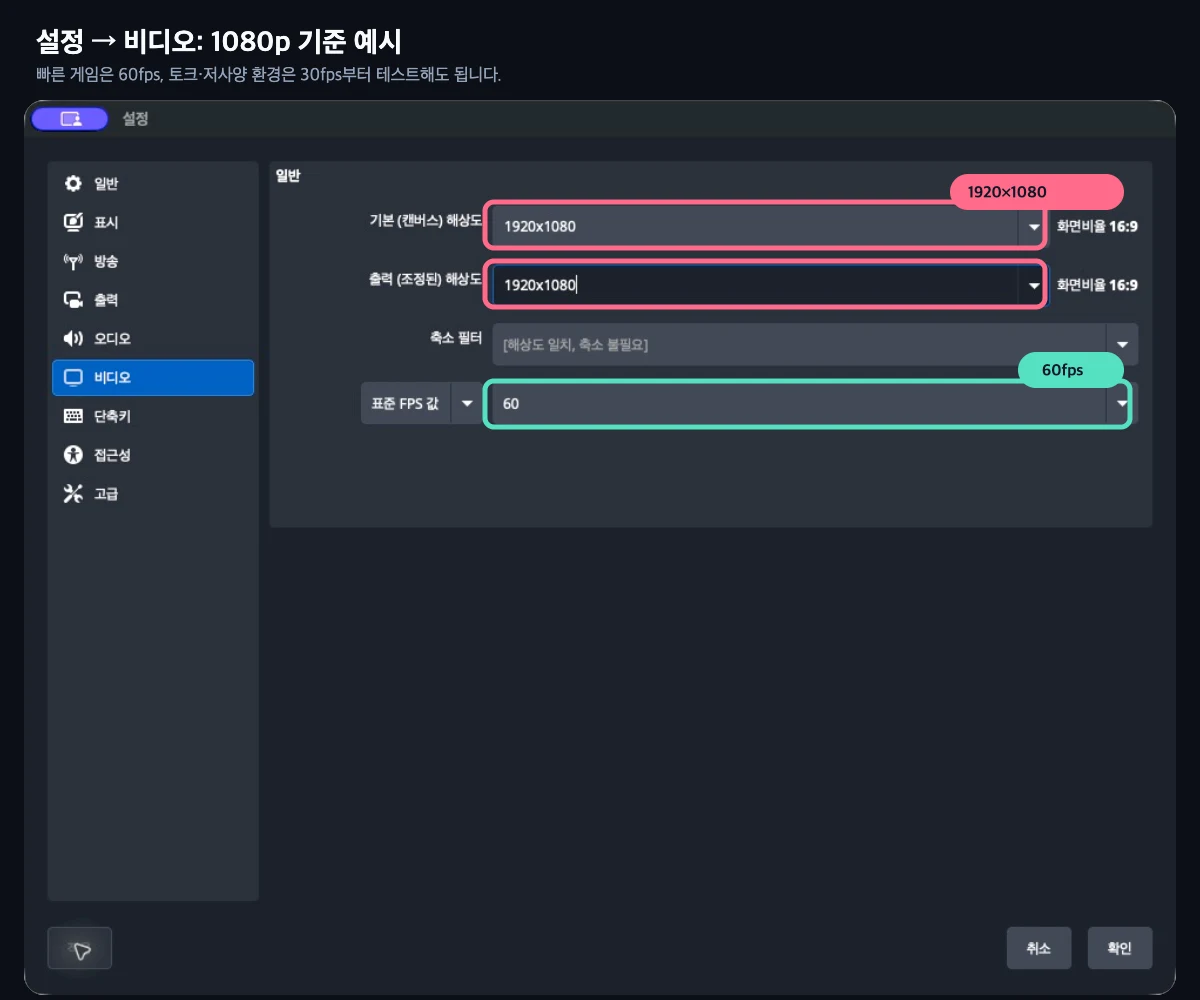
This is an example captured directly from the OBS profile for a separate guide.
3. Chzzk and SOOP transmission value, connection method
Recommended values are different for each platform, so one setting in OBS should not be used for all services.
| platform | Starting point based on 1080p | Places you must check |
|---|---|---|
| Chizijic | 60fps, 8000kbps, CBR, 1 second keyframe, hardware encoder suitable for GPU | Cizizik Official Recommended Transmission Value |
| SOOP | The current value displayed in the account's external device broadcast settings takes precedence | SOOP External device broadcast settings |
Steps to connect Chizizik to OBS
-
Log in to Chzzk and open ‘Broadcast Management → Broadcast’ in the studio.
-
When you see a prompt to connect streaming software on the screen, go to ‘Broadcast Management → Settings’.
-
Check the stream URL and masked stream key in stream settings. Press ‘Reissue’ only when you need to replace the existing key.
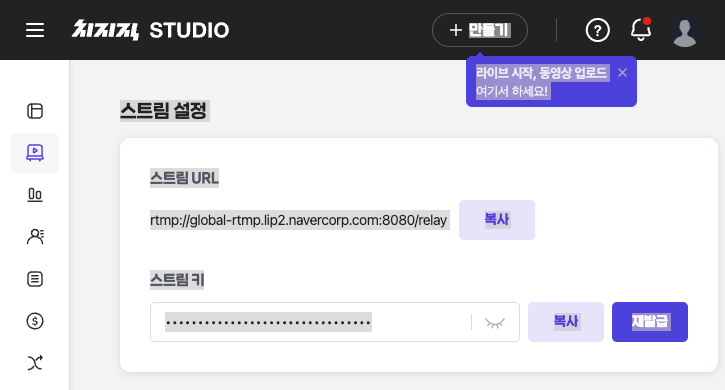
- In ‘OBS → Settings → Broadcasting’, select ‘Custom’ for the service.
- Paste the stream URL into the server field and the issued key into the stream key field and apply.
- Press Start Broadcast in OBS and check whether the broadcast status of Cizizik Studio changes to online.
Czyzyk recommends 1080p, 60fps, 8000kbps CBR, 1 second keyframe, and a hardware encoder appropriate for your GPU. If your PC and network conditions are insufficient, lower the resolution or FPS to ensure stability first.
Order of connecting SOOP to OBS
- Log in to SOOP and select Broadcast at the top.
- Open ‘Broadcast Management → Stream Settings’ of external device broadcasting.
- Check the server URL. If you do not have a stream key, click ‘Proceed with identity verification’ to complete authentication and receive a key.
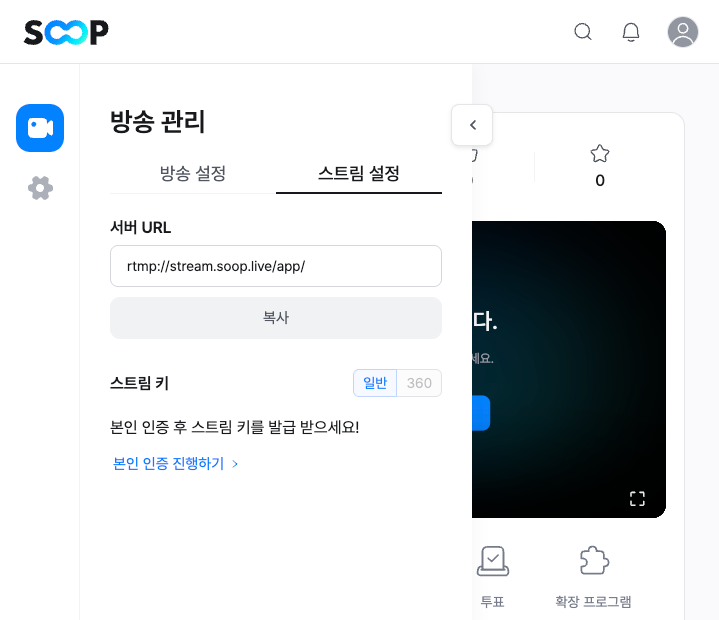
- In ‘OBS → Settings → Broadcasting’, select ‘Custom’ for the service.
- Enter and apply the server and stream keys respectively.
- After starting OBS transmission, check whether video and sound are coming in on the SOOP screen.
SOOP's official streamer guide guides you to 1920×1080 resolution and bitrates ranging from 2000kbps to 8000kbps. Encoders can be selected from x264, NVENC, H.264, QSV, and AMD series depending on the PC environment.
Prioritize the values and support range displayed in the external device broadcast settings of your SOOP account. If the instructions on the settings screen have changed, they are based on the current account screen rather than the number of blogs.
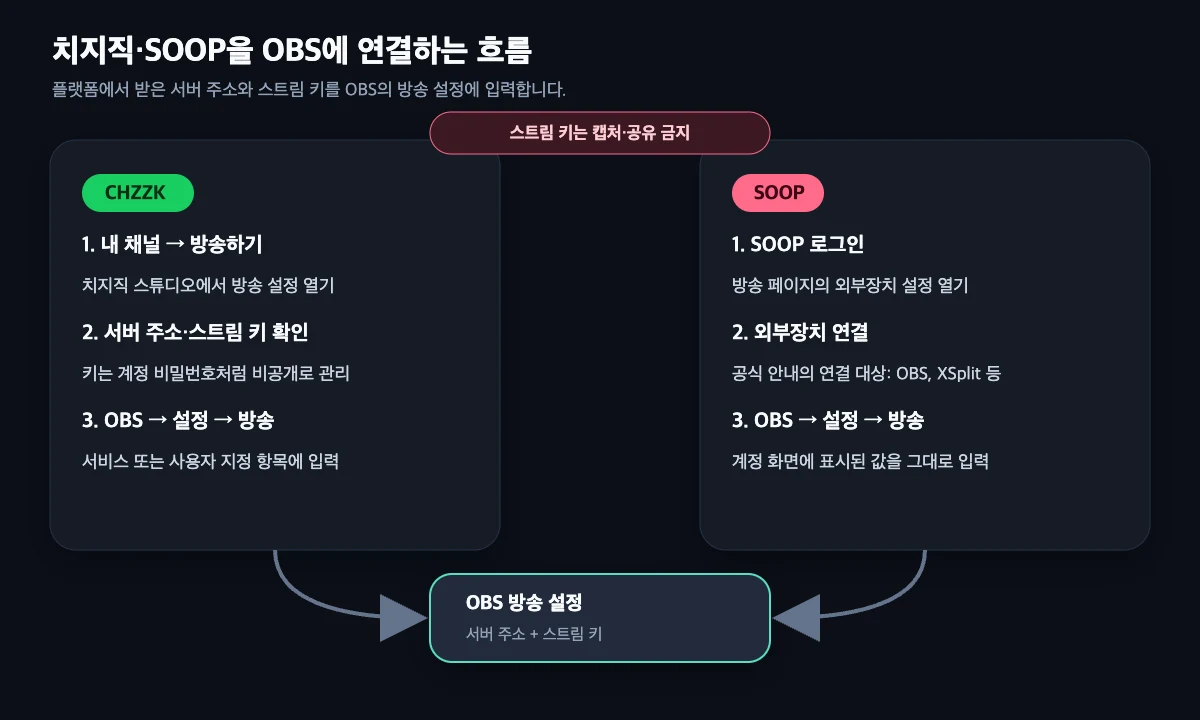
Stream key is the same as the password with broadcasting permission. Do not expose to captures, blog images, or chat.
For reference, YouTube guides H.264 1080p at 30fps 10Mbps, 60fps 12Mbps and keyframe of 2 seconds. Do not copy the Chzzk settings, but first check the latest instructions for the platform you are broadcasting from.
4. Microphone settings
Make sure the meters on your audio mixer move as you speak, and adjust the input gain so they don't stay in the red zone for too long, even for the loudest voices. If necessary, add noise suppression, compressor, and limiter filters one by one, but it is recommended to compare recordings before and after applying them.
Putting the same microphone into both the global device in Settings → Audio and the scene's audio input source at the same time may result in duplicate sounds or echoes. Please use only one route.
If you want to separately control the microphone, game sound, and Discord in the recording file while still exporting the broadcast sound, please continue to check the OBS Audio Separation and Recording Track Setting Guide.
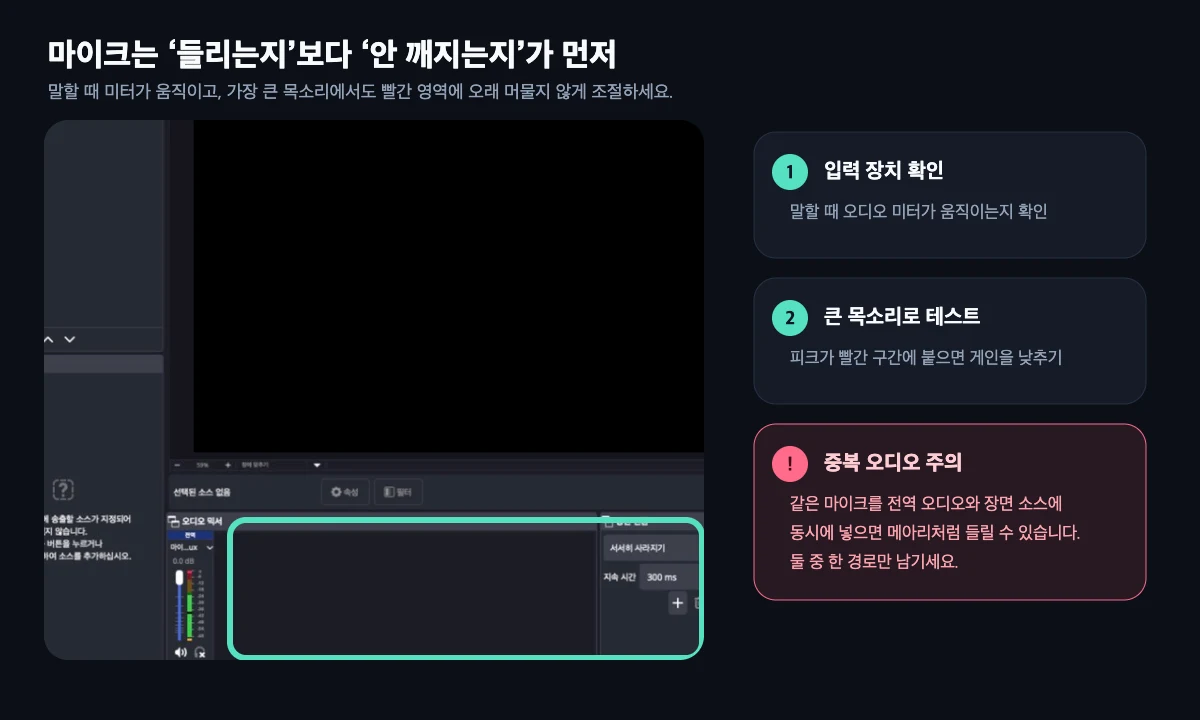
Check the balance of real voices, game sounds, and notification sounds while monitoring with earphones.
5. Last test before broadcasting
About 3 to 5 minutes before the main broadcast, conduct a private or test broadcast supported by the platform and watch it directly on another device.
- Sync: Is the timing of the screen and voice correct?
- Microphone: Is your voice small or broken?
- Scene Change: Doesn’t a black screen appear when changing scenes?
- Broadcast Status: Are there any dropped frames or encoding delays in the OBS status bar?
If the number of dropped frames increases, check the network and bitrate, and if there is an encoding delay, check the encoder and PC load.
The goal of the initial setup is not the highest picture quality, but uninterrupted broadcasting. Create a stable default, then add elements like webcams, notifications, and chat windows one by one. The process of finding clips in a long replay after the broadcast ends can be found in Broadcast Highlight Editing Guide.
The verification date is July 29, 2026. Platform policies and recommendations may change, so please double-check the official documentation before posting.
Frequently Asked Questions
When I first install OBS, what settings should I do first?
Create your scene and source, then choose 1920×1080, 30fps or 60fps, and connect your playout platform. Finally, check the microphone meter and test broadcast to complete the basic settings.
What is the appropriate OBS bit rate?
Chizijic's official customer center recommends 8000kbps CBR, 1 second keyframe, and a hardware encoder suitable for GPU for 1080p, 60fps broadcast. If you experience interruptions, check your PC load and upload network first and test by lowering the resolution or FPS.
How do I connect SOOP to OBS?
After logging in to SOOP, open the external device broadcasting settings and check the broadcasting information required to connect to OBS. Just enter that value into OBS' settings and broadcast menu. Prioritize the most up-to-date instructions on your account screen rather than randomly copying common figures.
Why do I hear the microphone sound twice in OBS?
It's likely that the same microphone went into both the global audio in your setup and the scene's audio input source at the same time. Turn off either path and record again to check.
Source
Don't miss the moment when my broadcast explodes.
Just enter a replay link and the chat and sponsorship responses will be analyzed to create scenes to be made into shorts. I'll find it for you.
Try it for free with my stream10 vouchers upon signing up · No card registration
Share this post
read together
Creating a reel from a 3-hour broadcast: How to choose 15 seconds to write and move them vertically
2026-08-31 · About 12 min
How to find 30 seconds in a 6-hour broadcast and reduce streamer reel editing time
2026-08-31 · About 10 min
Reasons why editor recruitment is inconsistent, from division of work to unit price and settlement
2026-08-31 · About 12 min