How to separate OBS audio: Chzzk and SOOP (Forest) broadcast recording track settings
We explain, along with the actual settings screen, how to separate microphone, game sounds, and Discord sounds into recording tracks while broadcasting sounds normally in OBS.

Hanbin Kim
 ClipSpray
Key takeaways
- It is safe to send track 1, which contains the entire sound, to Chizizik and SOOP broadcasts, and to save tracks 1 to 4 for local recording.
- By assigning Track 1 to the overall mix, Track 2 to the microphone, Track 3 to the game sound, and Track 4 to Discord, you can each adjust them during editing.
- You need to change the OBS output method to Advanced, set the recording format to MKV, and then select the audio track you need.
- If you use app-specific audio sources, you'll need to check for duplicate captures so you don't get the same sound from global desktop audio.
The key to OBS audio separation is storing the entire mix for broadcast and individual tracks together for editing. To Chzzk or SOOP (Forest) viewers, you can send track 1, which contains both the microphone and game sounds, and leave the microphone and game sounds as separate tracks in the recording file.
Chzzk and SOOP (Forest) Standard for dividing tracks in audio settings
Chzzk audio setting and SOOP (Forest) audio setting do not involve sending multiple audio tracks separately to each platform. For broadcasting on both platforms, track 1, which contains both the microphone and game sound, is used, and tracks 2 and later are left for editing the recorded file after the broadcast is over. With this configuration, the platform receives the entire mix, and when editing, you can re-adjust the volume on a sound-by-sound basis.
Recommended track configuration
| track | sound to insert | Use |
|---|---|---|
| 1 | Microphone, Gaming, Discord All | Broadcast transmission and general playback |
| 2 | Mike only | Voice correction |
| 3 | Game or app sounds only | Game volume control |
| 4 | Discord only | Conversation volume control |
OBS' streaming settings allow you to select a single audio track, and recording settings allow you to select multiple tracks. Therefore, if you leave Track 1 empty, sound may be missing from broadcasts or general playback.
1. Receive microphone and app sound as separate sources
First, your microphone and game sounds should appear as separate items in the audio mixer.
- Windows: In OBS 28 and above, you can add ‘Application Audio Capture’. OBS 30.1 and higher also supports the option to receive app audio along with game capture or window capture.
- macOS: On macOS 13 and higher and OBS 30 and higher, you can add
macOS Audio Captureand select a specific application.
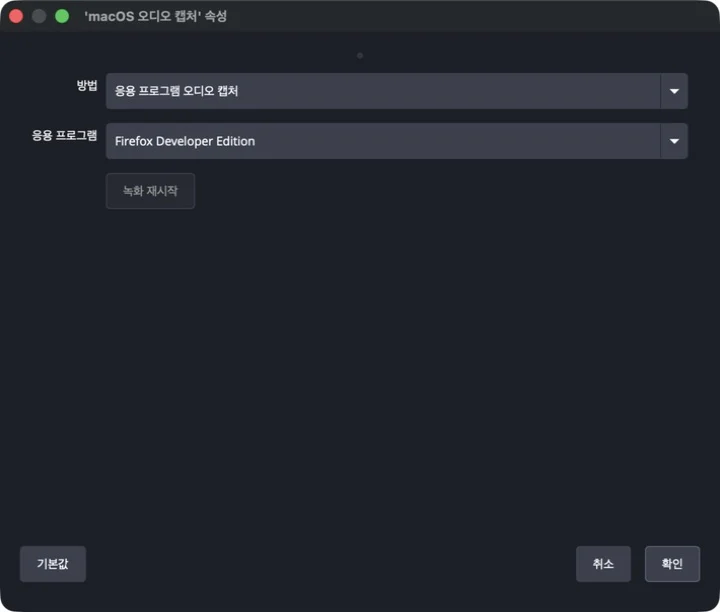
If you receive separate sounds for each app, check that the desktop audio in ‘Settings → Audio’ is not receiving the same sound again. When two paths overlap, they can sound double, like an echo.
2. Turn on recording tracks 1 to 4
In ‘Settings → Output’, change the output method to ‘Advanced’ and open the ‘Recording’ tab.
- Select
Matroska Video (.mkv)as the recording format. - Check audio tracks 1, 2, 3, and 4.
- Press ‘Apply’.
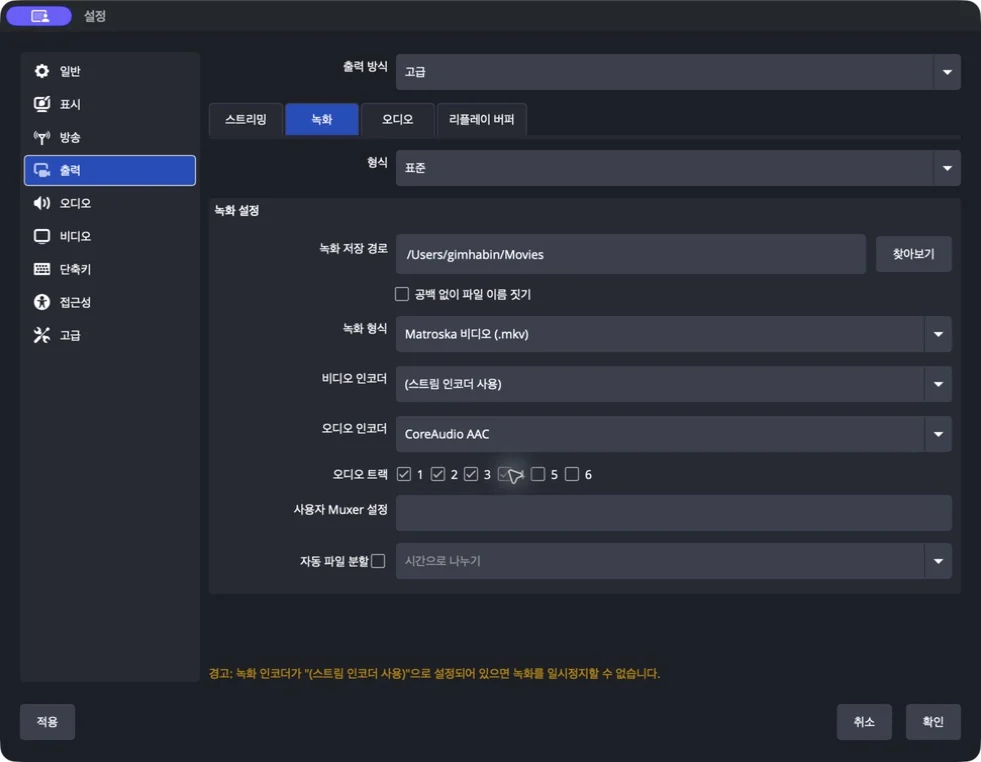
OBS recommends MKV as it is less likely to cause complete file corruption if recording is suddenly stopped. If you need MP4, you can convert it from ‘File → Record Remux’ after recording.
3. Determine the track for each source
Open ‘Audio Advanced Settings’ under Audio Mixer. You can check it like this:
- Mike: Tracks 1 and 2
- Game or App Sounds: Tracks 1 and 3
- Discord: Tracks 1 and 4
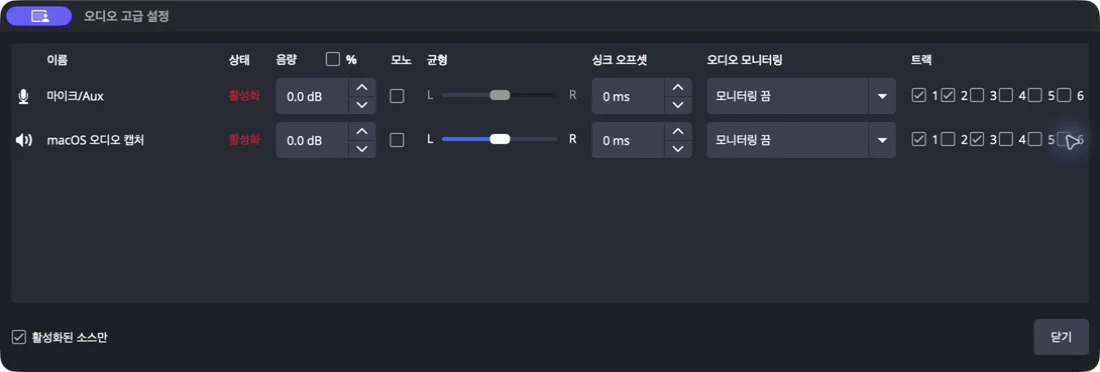
The point is to check all sources on track 1, and leave only the relevant sources on track 2 and beyond. If you check all tracks in all sources, the content will be the same even if there are multiple tracks in the file.
4. Check the actual track by recording briefly
Before broadcasting, record about 10 seconds and check the audio track in an editing program. The MKV I tested with the settings in this article produced one video and four AAC audio.
Regular video players often play only one audio track rather than mixing multiple audio tracks simultaneously. Even if the playback sound is normal, you should double check that tracks 2, 3, and 4 are separated in the editing program.
If you have not yet set up everything from Chizizik and SOOP's server and stream key connection to resolution and bitrate, please check the OBS Chizizik and SOOP Broadcast Setting Guide] first. Splitting audio is the process of adding a recording track for editing to its basic settings.
The verification date is August 3, 2026, and the actual settings and number of audio streams in the recorded files were confirmed in OBS Studio 32.2.1 and macOS environment.
Frequently Asked Questions
Do I need to set up Chzzk and SOOP (Forest) audio settings separately?
If you include both the microphone and game sound on Track 1 for your broadcast, your viewers will receive normal overall sound. Separate tracks are used for editing local recording files.
Why do I only hear one sound when I play a recorded file?
Regular video players often play only one audio track among many. Put all the sounds on track 1 as well, and check after track 2 in your editing program.
Why do I hear the game sound twice in OBS?
It's likely that your global desktop audio and per-app audio capture are receiving the same sound at the same time. If you use app-specific capture, turn off redundant global devices.
Is MKV a better recording format than MP4?
OBS recommends MKV, which has a low risk of damaging the entire file even if recording ends abnormally. If you need MP4, you can record it and then convert it with OBS' Remux Recording feature.
Source
Don't miss the moment when my broadcast explodes.
Just enter a replay link and the chat and sponsorship responses will be analyzed to create scenes to be made into shorts. I'll find it for you.
Try it for free with my stream10 vouchers upon signing up · No card registration
Share this post
read together
Creating a reel from a 3-hour broadcast: How to choose 15 seconds to write and move them vertically
2026-08-31 · About 12 min

How to find 30 seconds in a 6-hour broadcast and reduce streamer reel editing time
2026-08-31 · About 10 min

Reasons why editor recruitment is inconsistent, from division of work to unit price and settlement
2026-08-31 · About 12 min