How to split the OBS cam screen: Place game screen and webcam
We explain how to add a cam on top of the game screen in OBS, adjust its size, move its position, crop the screen, and even fix the source order using the actual settings screen. It can be commonly applied to Chzzk cam setting and SOOP (Forest) cam setting.

Hanbin Kim
 ClipSpray
Key takeaways
- Cam screen splitting in OBS is a method of overlapping the game screen and webcam source within one scene.
- Place the webcam above the game screen, as sources higher in the source list will be displayed higher on the screen.
- You can move it by dragging the red border and adjust its size by grabbing the corners.
- You can crop the cam screen by holding down Option on macOS or Alt on Windows and dragging the edge.
- After completing the arrangement, lock the source and record briefly to check that the game UI and subtitles are not obscured.
Splitting the OBS Cam screen does not involve turning on a separate split function. The key is to place the webcam source on top of the game screen and adjust its size and position. If you create this scene, the same screen will be broadcast as is on Chzzk and SOOP (Forest) broadcasts.
Chzzk and SOOP (Forest) cam settings can be done only once in OBS
Chzzk cam setting and SOOP (Forest) cam setting are not the process of creating separate cam screens for each platform. If you add a webcam as a 'video capture device' in OBS, place it on top of the game screen, and start broadcasting, the same screen composited in OBS will be transmitted to both platforms. For platform connection, please check separately in OBS Chzzk and SOOP Broadcast Setting Guide.
1. Adding game screen and webcam source
First, create a scene and then press ‘+’ under ‘Source List’ to add a broadcast screen.
- Windows Game Broadcast:
Game Capture - macOS screen broadcast:
macOS screen capture - Webcam:
Video Capture Device
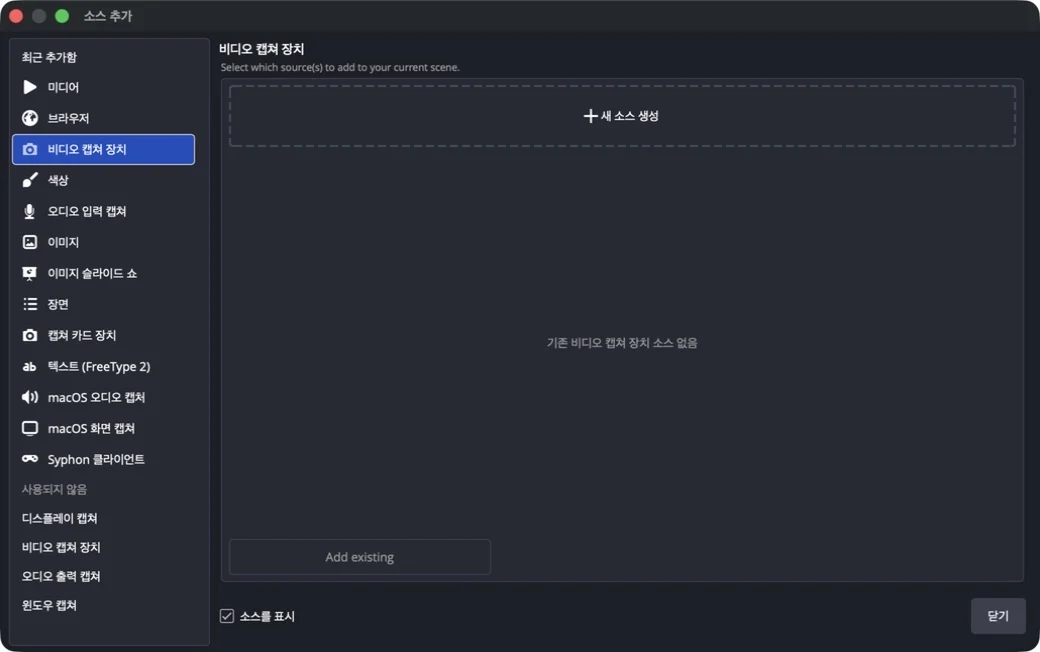
Create a new source under ‘Video Capture Devices’ and select the webcam or capture card you want to use from the list of devices. If you forcefully select a resolution or FPS that the device does not support, the screen may not appear, so it is safer to check with the default at first.
2. Place the cam above the game screen
OBS displays sources above in the source list at the front of the screen. Place the game screen at the bottom and the webcam at the top. If you don't see the cam, check the source order first rather than the size.
A red border will appear when you select a webcam source.
- Drag inside the screen and move it to the desired location.
- Drag the red dot at the corner to reduce it while maintaining the proportions.
- Find a location that does not obscure the game's health bar, minimap, subtitles, or chat.
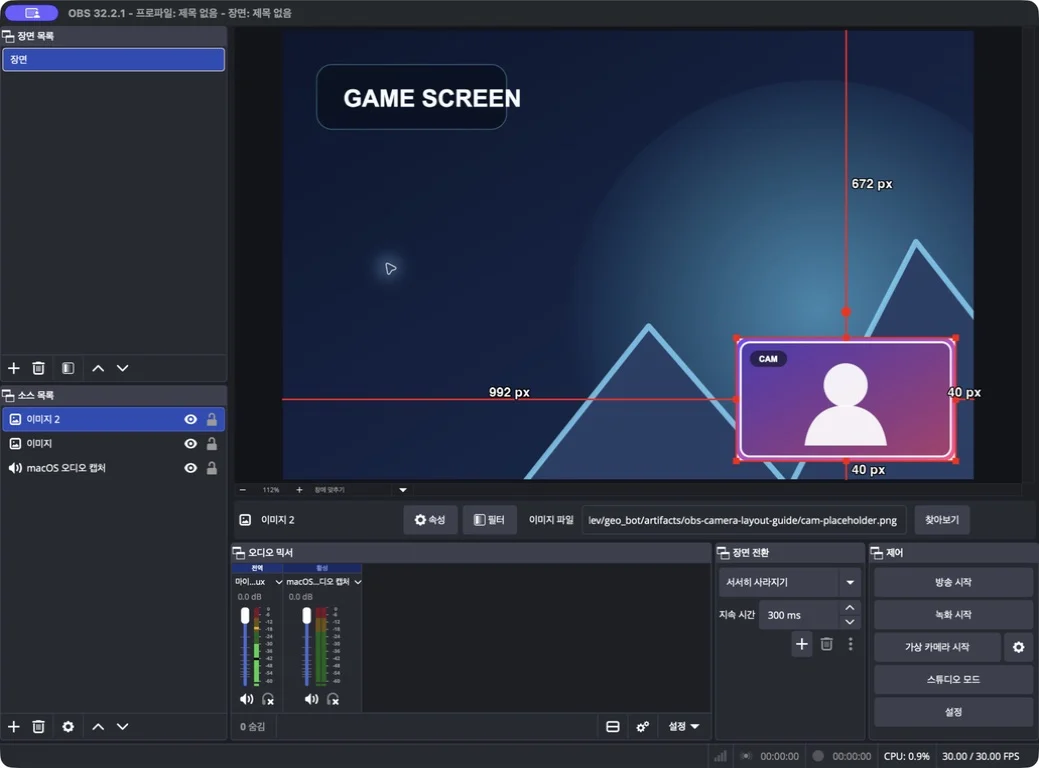
The example above is a screen that reproduces the placement process in an actual OBS scene using a non-personal cam replacement image as the webcam location. Bottom right is a common location, but if you have a game UI, top left or top right might be better.
3. Crop and position the cam screen accurately
Crop the cam edges to reduce the background or empty space and make the face area appear larger.
- macOS: Hold
Optionand drag edge - Windows: Hold
Altand drag edge
Cut edges are shown in green. The original video file or camera resolution does not change; only the visible range of the current scene is reduced.
If you need exact figures, select your webcam source and open 'Edit → Transform → Modify Transformation'. The shortcut for macOS is Cmd+E, and for Windows it is Ctrl+E.
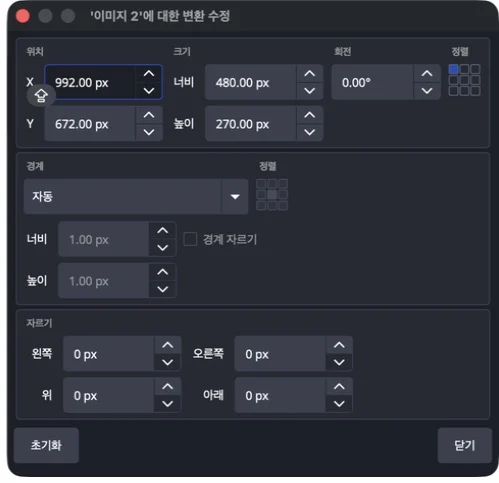
In this window, you can directly enter the X and Y position, width and height, and top and bottom and left and right crop values. If the aspect ratio is distorted, it is better to reset the conversion and then shrink again from the corners rather than 'stretch to screen'.
4. Lock batch and record test
Once placed, tap the lock icon in the source list to lock the cam and game screen. You can prevent your location from changing due to an accidental click during broadcasting.
Finally, record about 10 seconds to check the following:
- Is the cam visible in front of the game screen?
- Were the face and body cut to the intended ratio?
- Doesn’t it cover game UI, subtitles, and chat?
- Is the position maintained even after changing scenes?
If you need to set up the Chzzk or SOOP connection, resolution, and bitrate, first check the OBS Chzzk and SOOP Broadcast Setting Guide. If you want to edit the microphone and game sounds separately in the recording file, you can follow the OBS Audio Separation Guide].
The verification date is August 3, 2026, and the process of adding sources, changing order, adjusting location, and modifying conversion was directly confirmed in OBS Studio 32.2.1 and macOS environment.
Frequently Asked Questions
Why is the OBS cam hidden behind the game screen?
This is because the cam source is lower than the game screen in the source list. When you move the cam source up, it will appear at the front of the screen.
Is it possible to cut out only the unnecessary parts of the OBS webcam screen?
Just hold down Option on macOS or Alt on Windows and drag the edge of the source. The exact number can be entered in the Crop section of the Transform Modification window.
Do I need to set up Chzzk and SOOP (Forest) cams separately?
No. The screen composited from the OBS scene is transmitted to the platform as is. Platform connection and transmission values must be set separately.
Why is the webcam screen black in OBS?
Another program may be using the camera, or your device may not support the resolution and FPS you selected. Close other apps and check by changing your device settings to default.
Source
Don't miss the moment when my broadcast explodes.
Just enter a replay link and the chat and sponsorship responses will be analyzed to create scenes to be made into shorts. I'll find it for you.
Try it for free with my stream10 vouchers upon signing up · No card registration
Share this post
read together
Creating a reel from a 3-hour broadcast: How to choose 15 seconds to write and move them vertically
2026-08-31 · About 12 min
How to find 30 seconds in a 6-hour broadcast and reduce streamer reel editing time
2026-08-31 · About 10 min
Reasons why editor recruitment is inconsistent, from division of work to unit price and settlement
2026-08-31 · About 12 min